

English
FAQ
This Index was created in mind to help guide users on what features do what and how to use them.
IMPORTANT
If you found a bug, create an issue on the GitHub page.
Check the FAQ BEFORE you make an issue.
This script is intended only to assist in the creation of YTPMVs and otoMADs.
It is not designed to fully automate your workflow. Please do not rely on it to do all the editing work for you.
Basic Issues
What do these “︀specific”︀ features do? / Where is “︀feature”︀.
The documentation elaborates and indicates what each feature does and their respective functions. You should read there if you’︀re confused about what features do what and how they work.
My MIDI File isn’︀t working.
Make sure you have exported the MIDI file with a compatible program (e.g. FL Studio) and it has MIDI Channels/Tracks. A MIDI file that has no channels or tracks in it will not load or not correctly work with the script. If the MIDI is the MIDI file itself, try re-exporting the MIDI by re-importing it into the same program it was exported from and exporting it again.
If the MIDI file is from FL Studio. Make sure you go to ToolsMacrosPrepare for MIDI Export, then Export as a .mid file.
If the MIDI file is from Reaper. When you’︀re done with the project, go to Export Project MIDI, select your input tracks to Entire Project and All Tracks. Set the output to Multitrack MIDI file (type 1) and hit OK.
If it still doesn’︀t work, it may likely be Velocity Error! or Could not load file or assembly "NAudio".
I’︀m seeing white shapes and not the visual. / Can’︀t create drums.
This is being generated by the Sonar feature. Sonar will automatically turn on if your MIDI detects or has a drum track/channel and is selected. If you do not wish to have these types of visuals, promptly disable the feature in your configuation.
Otomad Helper doesn’︀t work when I run it.
Make sure you have the latest corresponding version for the Vegas Pro version you have. 13, 14 – 15, and 16+ each have their own different version. Download the version that matches your Vegas Pro version.
You also need NAudio installed alongside it, which comes with the script, this is required. Make sure NAudio has its respective folder in the script menu folder.
Always grab the latest script from Releases, not the source code!
I downloaded both .cs and .dll releases, is that ok?
.cs and .dll releases, is that ok?The script now comes in 2 packages. The .CS package and the .DLL package. The .DLL version will run faster than .CS.
You can NOT have both at the same time. If you use the .DLL version of the script, you must remove the .cs and .cs.config versions and vice versa!
Could not load file or assembly “︀NAudio”︀ / Operation is not supported.
Make sure you have unblocked the NAudio DLLs. Go to the dll Folder, right-click the dll, go to properties. if you see it says it’︀s blocked, unblock it.
Velocity Error!
System.DivideByZeroException: Attempted to divide by zero.This is caused by the input values of the mapping velocity feature to be set the same. Make sure the value inputs are not the same.
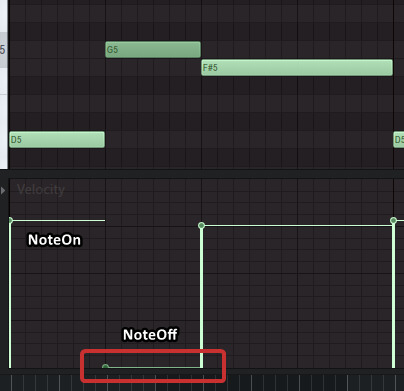
System.FormatException: Got an off without an on 0 NoteOnYour MIDI file has a note that has a velocity of 0. Check to make sure there isn’︀t any notes that have a velocity value of 0 (aka notes that have no volume).
Example:
Specified argument was out of the range of valid values.
IMPORTANT
This is fixed in Version 4.64.17.0, so it should not be reproduced in the latest version.
at ScriptPortal.Vegas.Fade.set_Gain(Single value)This is caused by ”︀Mapping Velocity”︀ being turned on and having a value set that is higher or lower than what is used in the MIDI file. Change the Mapping Velocity back to 0 ~ 127 and Volume to 0 ~ 100 or disable Mapping Velocity. (Most Likely Scenario.)
Installation Related
A new expression requires () or [] after type
new expression requires () or [] after typeError Type: The Vegas version is too old, like a problem with Vegas 12.
Raise Moment: When running the script in the menu.
Error Info:
C:\Program Files\Sony\Vegas Pro 12.0\Script Menu\otomad_helper.cs(17): A new expression requires () or [] after typeSolution: Use a newer version of Vegas.
Supplementary note:
Chaosinism’︀s original note: I mistakenly claimed that the script can be used in any version from 12 to 15. In fact, it is probably unusable in 12. I am very sorry if it causes any inconvenience. Since I don’︀t have Vegas 12 myself, I don’︀t know the exact reason. It is inferred that because the old version of Vegas uses a different .NET framework, some syntax is not supported.
Note from posterity (editor): This error first occurred in the v0.1 version of the script. On line 17 and onwards of the script is the following code:
CSharp
public Dictionary<string, int> pitchMap = new Dictionary<string, int> {
    { "C0", 0 },
    { "C#0", 1 },
    // ...
    { "A#8", 106 },
    { "B8", 107 },
};
Notice that there are no parentheses after code:
CSharp
new Dictionary<string, int>The standard syntax should be:
CSharp
new Dictionary<string, int>()The syntax feature that allows the omission of parentheses () for no-argument constructors in object creation expressions with collection initializers is supported starting from C# 3.0 and .NET Framework 3.5.
When Microsoft introduced LINQ, it also introduced the “︀Object and Collection Initializers”︀ syntax. It is clearly stated in the language specification of C# 3.0: When using an initializer (braces {}), if a parameterless constructor is called, the parentheses () after the type name can be omitted.
This is enough to show that Vegas Pro 12 should use C# 1.0/2.0 and .NET Framework 1.0/2.0 as the scripting framework.
The type or namespace name “︀Sony”︀ does not exist
Error Type: Vegas version does not match.
Raise Moment: When running the script in the menu.
Error Info:
C:\Program Files\VEGAS\VEGAS Pro 15.0\Script Menu\otomad_helper.cs(11):The type or namespace name "Sony" does not exist (are you missing an assembly reference?)
C:\Program Files\VEGAS\VEGAS Pro 15.0\Script Menu\otomad_helper.cs(657):The type or namespace name "Vegas" does not exist (are you missing an assembly reference?)
Solution: Use the script corresponding to the Vegas version.
Supplementary note: The scripts corresponding to Vegas 13 and Vegas 14/15 are somewhat different. I have released different download links in the Github release. Please use the correct version. Specifically, the Vegas series software has been sold to MAGIX by Sony since 14, so the naming of some libraries has also changed and no longer contains the word “︀Sony”︀.
Cannot find metadata file “︀NAudio.dll”︀
Error Type: Cannot find NAudio.dll.
Raise Moment: When running the script in the menu.
Error Info:
C:\Program Files\VEGAS\VEGAS Pro 15.0\Script Menu\otomad_helper.cs: Cannot find metadata file "C:\Program Files\VEGAS\VEGAS Pro 15.0\Script Menu\DLL\NAudio.dll"Solution: Make sure you place NAudio.dll in the correct location; make sure this file is unlocked.
Supplementary note: Please refer to the installation instructions. NAudio is a library used for processing audio files, and I apply it to read MIDI files, so NAudio.dll file is essential.
Unable to read MIDI file
Error Type: Read MIDI file failed.
Raise Moment: After reading MIDI files or While generating audio/video.
Error Info:
System.Reflection.TargetInvocationException: Exception has been thrown by the target of an invocation. ---> System.FormatException: Not a MIDI file - header chunk missing
  at NAudio.Midi.MidiFile ..ctor(Stream inputStream, Boolean strictChecking, Boolean ownInputStream)
  at EntryPoint.FromVegas(Vegas vegas)
 --- End of inner exception stack trace ---
  at System.RuntimeMethodHandle.InvokeMethod(Object target, Object[] arguments, Signature sig, Boolean constructor)
  at System.Reflection.RuntimeMethodInfo.UnsafeInvokeInternal(Object obj, Object[] parameters, Object[] arguments)
  at System.Reflection.RuntimeMethodInfo.Invoke(Object obj, BindingFlags invokeAttr, Binder binder, Object[] parameters, CultureInfo culture)
  at ScriptPortal.Vegas.ScriptHost.ScriptManager.Run(Assembly asm, String className, String methodName)
  at ScriptPortal.Vegas.ScriptHost.RunScript(Boolean fCompileOnly)
System.Reflection.TargetInvocationException: Exception has been thrown by the target of an invocation. ---> System.NullReferenceException: Object reference not set to an instance of an object.
at EntryPoint.FromVegas(Vegas vegas)
--- End of inner exception stack trace ---
at System.RuntimeMethodHandle.InvokeMethod(Object target, Object[] arguments, Signature sig, Boolean constructor)
at System.Reflection.RuntimeMethodInfo.UnsafeInvokeInternal(Object obj, Object[] parameters, Object[] arguments)
at System.Reflection.RuntimeMethodInfo.Invoke(Object obj, BindingFlags invokeAttr, Binder binder, Object[] parameters, CultureInfo culture)
at Sony.Vegas.ScriptHost.ScriptManager.Run(Assembly asm, String className, String methodName)
at Sony.Vegas.ScriptHost.RunScript(Boolean fCompileOnly)Solution: Import the MIDI with the host software, and then re-export a new MIDI file.
Supplementary note: There are multiple formats of MIDI files, and the script does not guarantee that all of them can be read correctly. Fortunately, MIDI files exported by mainstream host software under default settings are generally readable. (Currently tested FL Studio, LMMS and Music Studio for iPad.)
Unable to apply Pitch Shift plugin
IMPORTANT
This bug is obsolete and only occurs in Otomad Helper v0.1, it should not occur with the latest version.
Error Type: Unable to apply Pitch Shift plugin. The Pitch Shift plugin cannot be found.
Raise Moment: While generating audio/video.
Error Info:
System.Reflection.TargetInvocationException: Exception has been thrown by the target of an invocation. --->
System.ArgumentNullException: Value cannot be null.
  at ScriptPortal.Vegas.Effect..ctor(PlugInNode plugIn)
  at EntryPoint.FromVegas(Vegas vegas)
 --- End of inner exception stack trace ---
  at System.RuntimeMethodHandle.InvokeMethod(Object target, Object[] arguments, Signature sig, Boolean constructor)
  at System.Reflection.RuntimeMethodInfo.UnsafeInvokeInternal(Object obj, Object[] parameters, Object[] arguments)
  at System.Reflection.RuntimeMethodInfo.Invoke(Object obj, BindingFlags invokeAttr, Binder binder, Object[] parameters, CultureInfo culture)
  at ScriptPortal.Vegas.ScriptHost.ScriptManager.Run(Assembly asm, String className, String methodName)
  at ScriptPortal.Vegas.ScriptHost.RunScript(Boolean fCompileOnly)
Solution: Make sure your Vegas has the “︀Pitch Shift”︀ plugin and the it named “︀Pitch Shift”︀ indeed.
Supplementary note:
For details, please refer to the installation method instructions in the previous bilibili column. If that still doesn’︀t work, another way is to find all
CSharp
vegas.AudioFX.FindChildByName("Pitch Shift");words in the script (4 in total), and replace them with
CSharp
vegas.AudioFX.FindChildByUniqueID("{ED1B4100-93BE-11D0-AEBC-00A0C9053912}");But this approach is not guaranteed to succeed. This type of error leaves some doubts that I haven’︀t fully resolved yet.
Unable to apply the preset of Pitch Shift plugin
IMPORTANT
This bug is obsolete and only occurs in Otomad Helper v0.1, it should not occur with the latest version.
Error Type: Unable to apply the preset of Pitch Shift plugin. Presets cannot be found.
Raise Moment: While generating audio/video.
Error Info:
System.Reflection.TargetInvocationException: Exception has been thrown by the target of an invocation. --->
System.Runtime.InteropServices.COMException: Error HRESULT E_FAIL has been returned from a call to a COM component.
  at ScriptPortal.Vegas.IEffectCOM.SetPreset(UInt32 sessionID, Int64 position, String presetName)
  at EntryPoint.FromVegas(Vegas vegas)
 --- End of inner exception stack trace ---
  at System.RuntimeMethodHandle.InvokeMethod(Object target, Object[] arguments, Signature sig, Boolean constructor)
  at System.Reflection.RuntimeMethodInfo.UnsafeInvokeInternal(Object obj, Object[] parameters, Object[] arguments)
  at System.Reflection.RuntimeMethodInfo.Invoke(Object obj, BindingFlags invokeAttr, Binder binder, Object[] parameters, CultureInfo culture)
  at ScriptPortal.Vegas.ScriptHost.ScriptManager.Run(Assembly asm, String className, String methodName)
  at ScriptPortal.Vegas.ScriptHost.RunScript(Boolean fCompileOnly)
Solution: Make sure all 25 presets are added to the Pitch Shift plugin and named correctly.
Supplementary note:
Chaosinism’︀s original note: For details, please see the installation method instructions in my previous bilibili column. These 25 presets are all types of pitch changes within one octave above and below. Missing any one may cause errors. It is indeed very troublesome to add presets manually, but Vegas cannot use scripts to specify the specific parameters of the pitch change, so I have to go around this detour.
Unable to read media stream
Error Type: Unable to read media stream.
Raise Moment: While generating audio/video.
Error Info:
System.Reflection.TargetInvocationException: Exception has been thrown by the target of an invocation. --->
System.ArgumentException: Media stream not specified.
  at Sony.Vegas.Take.AddSelf(UInt32 trackID, Int64 eventID, MediaType mediaType)
  at Sony.Vegas.TrackEvent.AddTake(MediaStream mediaStream)
  at EntryPoint.FromVegas(Vegas vegas)
 --- End of inner exception stack trace ---
  at System.RuntimeMethodHandle.InvokeMethod(Object target, Object[] arguments, Signature sig, Boolean constructor)
  at System.Reflection.RuntimeMethodInfo.UnsafeInvokeInternal(Object obj, Object[] parameters, Object[] arguments)
  at System.Reflection.RuntimeMethodInfo.Invoke(Object obj, BindingFlags invokeAttr, Binder binder, Object[] parameters, CultureInfo culture)
  at Sony.Vegas.ScriptHost.ScriptManager.Run(Assembly asm, String className, String methodName)
  at Sony.Vegas.ScriptHost.RunScript(Boolean fCompileOnly)
Solution: In the settings, do not check “︀Include video”︀ for pure audio sources; do not check “︀Include audio”︀ for pure video sources.
Supplementary note: If it still cannot be solved, it means that the source file may be in a format that Vegas does not support. You can manually drag the file into Vegas to see if the video and audio are normal.
Deep Exploration
Replace Track Events Separately Explanation
- Select a clip that you want to use as the replacement and set it as the replacement…
- Click the top “︀Back to Vegas”︀…
- Select the Clips you want to replace…
- Run the Script Again…
- Set the Replaced Selected…
- Click Replace…
This will replace the clips with what you selected for the replacement.
Got an off without an on 0 NoteOn (How to find the offending note?)
- Value of (PPQ).
- Answer is in
Bar:Beat:Tickis where the off value note is. - Or the beat it is on (e.g. in
Bar:Beat:Tick).
Mapping Velocity Explanation
- Mapping Velocity will generate events in the timeline where the opacity (for video) or volume (for audio) corresponds directly to the velocity value of each MIDI note, based on the range you set in the script.
- The standard MIDI velocity range is 0 – 127.
You can set a custom velocity range and map it to your desired opacity or volume range.
Example
If you set the velocity range to 64 – 127 and the opacity/volume range to 50% – 100%:
- Notes with velocity 64 (Half velocity in FL Studio or Reaper) will generate at 50% opacity/volume. And notes with velocity 127 will generate at 100% opacity/volume.
IMPORTANT
Mapping Velocity does not ignore notes outside your set range.
- If a note’︀s velocity is lower than your minimum setting, the generated event will be muted (0% volume / fully transparent).
- If a note’︀s velocity is higher than your maximum setting, the generated event will be set to 100% opacity/volume.
Audio Bus Track Bug caused by Vegas Pro
Detailed Description of the Question:
When the project contains audio bus tracks other than the master audio bus, I cannot render the project to a WAV (Microsoft Wave) file and a W64 (Sony Wave64) file (the render progress immediately reaches 100%, but no WAV file or W64 file is produced). Why is it?
Also, when I render to any other format, all effect parameters on the audio bus tracks have no effect.
This is caused by Multi Stream Render. You need to go to Internal Preferences, search for Enable Multi Stream Render, and change it from TRUE to the default FALSE.
How to Access Internal Preferences?
- Vegas Pro 18 and above: Hold Shift, then go to the top menu OptionsInternal.
- Vegas Pro 17 and below: Hold Shift, then go to the top menu OptionsPreferences, switch to the
Internaltab.
Why did this bug occur? Firstly, the Vegas official does not expect you to deliberately modify the Internal Preferences. They believe that the default settings are the most suitable for common users to use. Unless you proactively modify the setting, if you download and install the so-called ”︀Vegas Optimization Solution”︀ registry file elsewhere, they may turn on the Multi Stream Render settings, even if you don’︀t know how these files have tampered with your settings.