

English
Source
Source Configuration
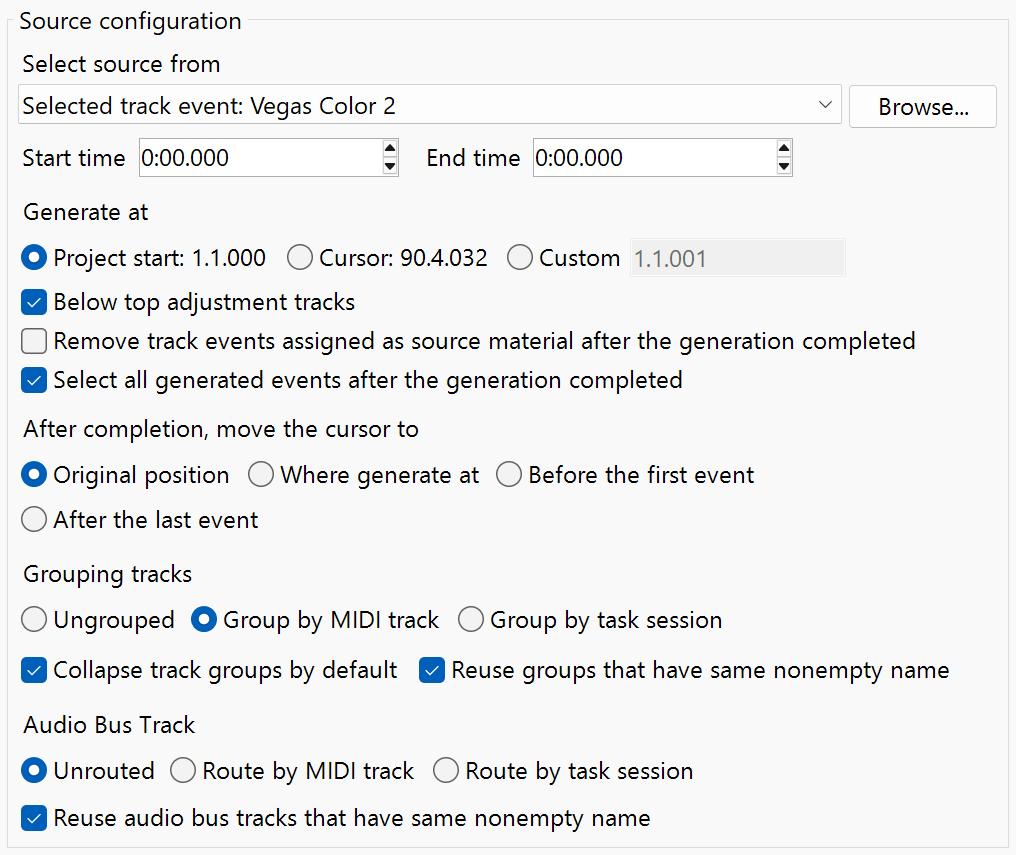
Select source from
Allows selecting a media file or a track event chosen to be used.
INFO
- You must have a track event selected before you run the script.
- You can also choose a media file that has the visual ready to go for you when you browse.
- You can select a video clip and audio clip separately, and the script will combine them to generate.
- You can also drag and import clips to be used in Otomad Helper.
Start and End Time
Trim the start time and end time of the clip used.
Generate at
Controls where the MIDI can be generated.
- Project Start
- Generates the MIDI at the Start.
- Cursor
- Generates the MIDI at the Cursor Position.
- Custom
- Generates the MIDI at any Time Position chosen.
Below Top Adjustment Tracks
- Places the Generated Tracks below the Adjustment Tracks.
WARNING
This is available in Vegas Pro 19 and up.
Remove track events assigned as source material after the generation completes
- Deletes the original source clip after the MIDI has been generated.
Select all generated events after the generation completes
- Selects all events generated after the MIDI has been generated.
Move the Cursor to
Positions the cursor to a specified location in the timeline.
- Original Position
- Retains the timeline cursor in the original position before you ran the script.
- Where Generate at
- Moves the cursor to the start of the MIDI file.
- Before the First Event
- Moves the cursor to before the first generated event in the timeline.
- After the Last Event
- Moves the cursor to after the last generated event in the timeline.
Grouping Tracks
Creates groups for the tracks.
- Ungrouped
- Disables track grouping.
- Group by MIDI track
- Groups tracks based on the MIDI track used and uses the MIDI track name.
- Group by task session
- Creates a new group whenever a new generation is completed.
- Collapse track groups by default
- Collapses the track group list
- Reuse groups that have the same nonempty name
- The generation of newly added tracks to be added to existing track groups with the same name.
Audio Bus Track
Routes audio tracks to audio buses (Mixing Console).
- Unrouted
- Disables routing to audio buses.
- Route by MIDI track
- Routes the audio track to the same bus based on the MIDI track used.
- Route by task session
- Creates and routes the audio track to a new bus whenever a new generation is completed.
DANGER
There is a bug. If you find that you cannot render the project properly when using audio bus track feature, please click the link below to fix it now.
- Reuse audio bus tracks that have the same nonempty name
- The generation of newly added tracks to be added to existing audio buses with the same name
Multisource Combination

Off
Disables the multisource features.
Mystery Box
- Automatically picks from multiple selected sources in unpredictable ways.
Limited to selected sources
- Only uses the sources selected in the timeline/project media.
Make each track different
- Each track will generate with a different clip.
Switch once per marker
- Changes the source when a MIDI marker is reached.
Switch once per bar or beat
- Changes the source when a beat or bar has passed.
Lotion Bath Tactics
- Forces the source to sequentially change at your specified duration.
IMPORTANT
If limited to selected sources is enabled, Lotion Bath Tactics will use sources in sequential order
Source Syncopator
Applies sources in a patterned, musical way.
Order
- Sequential
- Uses clips in the order they were selected.
- Reversed
- Uses clips in reverse order.
- Shuffled
- Shuffles the order of the generation.
Repetitions per clip
- Specifies the amount of times a source can be used before switching to the next clip.
Total repetition rounds
- Specifies the amount of times to loop.
INFO
Setting to 0 loops infinitely.
Apply visual effects by rounds
- Applies video effects in cycles rather than every clip.
Mystery Box
- Combines the Mystery Box behavior to the generation.
Accumulate overtones of chords separately
- Makes use of multiple sources when a chord is generated.
Sustain source at same pitch
- Uses the same source for the next note with the same pitch.
Pitch cache capacity
- Specifies the amount of times it will repeat the source.
IMPORTANT
Disables repetitions per clip.
Source Orchestra
Assigns source clips to MIDI tracks, like assigning instruments to an orchestra.
Selection Mode
- Mystery Box
- Uses the Mystery Box behavior
- Source Syncopator
- Uses the Source Syncopator behavior
Descending
- Reverses the order of sources used on each track.
Allow reuse
- Allows the same clips to be used across different MIDI tracks multiple tracks.
INFO
This is useful when you have fewer sources than tracks.
Consonant Time
COMING SOON (patience)
Shupelunker Tactics & Tartar Tactics
COMING SOON (patience)