

English
Installation
Core Script
Release Assets Description
Note: The asset with word
.dllis a precompiled script, which can start up twice as fast as the source code.csscript. You can choose to download according to your needs.
0_otomad_helper_v4.x.x.x_vegas16-2026.cs.zip- The source code script for MAGIX VEGAS Pro 16, MAGIX VEGAS Pro 17, MAGIX VEGAS Pro 18, MAGIX VEGAS Pro 19, MAGIX VEGAS Pro 20, MAGIX VEGAS Pro 21, MAGIX VEGAS Pro 22, MAGIX VEGAS Pro 23, BorisFX Vegas Pro 2026 and later versions (if possible).
1_otomad_helper_v4.x.x.x_vegas1415.cs.zip- The source code script for MAGIX VEGAS Pro 14, MAGIX VEGAS Pro 15.
2_otomad_helper_v4.x.x.x_vegas13.cs.zip- The source code script for Sony Vegas Pro 13.
3_otomad_helper_v4.x.x.x_vegas16-2026.dll.zip- The precompiled script for MAGIX VEGAS Pro 16, MAGIX VEGAS Pro 17, MAGIX VEGAS Pro 18, MAGIX VEGAS Pro 19, MAGIX VEGAS Pro 20, MAGIX VEGAS Pro 21, MAGIX VEGAS Pro 22, MAGIX VEGAS Pro 23, BorisFX Vegas Pro 2026 and later versions (if possible).
4_otomad_helper_v4.x.x.x_vegas1415.dll.zip- The precompiled script for MAGIX VEGAS Pro 14, MAGIX VEGAS Pro 15
- Unzip ALL the files in the ZIP file you’︀ve just downloaded to the
Script Menufolder in the Vegas installation directory, or theVegas Script Menufolder in theDocuments(formerlyMy Documents) folder. Specifically:
Install for a Specific Installed Vegas Version
If you want to install the script only for a specific installed Vegas version, please install into the Script Menu folder in the Vegas Pro directory.
C:\Program Files\BorisFX\Vegas Pro 2026\Script MenuC:\Program Files\VEGAS\VEGAS Pro 23.0\Script MenuC:\Program Files\VEGAS\VEGAS Pro 22.0\Script MenuC:\Program Files\VEGAS\VEGAS Pro 21.0\Script MenuC:\Program Files\VEGAS\VEGAS Pro 20.0\Script MenuC:\Program Files\VEGAS\VEGAS Pro 19.0\Script MenuC:\Program Files\VEGAS\VEGAS Pro 18.0\Script MenuC:\Program Files\VEGAS\VEGAS Pro 17.0\Script MenuC:\Program Files\VEGAS\VEGAS Pro 16.0\Script MenuC:\Program Files\VEGAS\VEGAS Pro 15.0\Script MenuC:\Program Files\VEGAS\VEGAS Pro 14.0\Script MenuC:\Program Files\Sony\Vegas Pro 13.0\Script MenuInstall for All Installed Vegas Versions
If you want to install the script for all installed Vegas versions, please install into the Vegas Script Menu folder in the Documents folder.
%UserProfile%\Documents\Vegas Script MenuC:\Users\(Your User Name)\Documents\Vegas Script MenuIf the folder does not exist, please follow these steps:
TIP
- Go to
Documents(Windows 8+) orMy Documents(Windows 7) folder in User’︀s Personal Folder. - Create a new folder and name it
Vegas Script Menu. - Insert the files into said folder.
DANGER
Vegas Pro 13, VEGAS Pro 14~15, VEGAS Pro 16+ each use different kinds of script. If install it for all installed Vegas versions, non corresponding Vegas versions will not recognize the correct script, which will still raise an error.
If you have installed multiple versions of Vegas Pro simultaneously, please try to use other solutions, such as renaming the script.
- Make sure that the DLL file
(DLL\NAudio.dll)is not locked.
Specific steps
- Enter folder
DLLfrom the same directory whereOtomad Helper.{cs,dll}file is located. That is:- In the Vegas installation directory, enter folder
Script Menu\DLL. - In the
Documentsfolder, enter folderVegas Script Menu\DLL.
- In the Vegas installation directory, enter folder
- Right-click the
NAudio.dllfile and select Properties. - If you see the Unblock button (Windows 7/8.x) or checkbox (Windows 10+), click or check it.
- Click OK button and you’︀re done.
At this point, your folder should look like this:
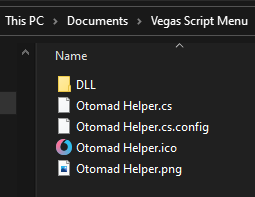
- Open Vegas Pro to launch it. Select menu ToolsScriptingRescan Script Menu Folder.
- Select menu ToolsScriptingOtomad Helper to open.
Datamosh Extension Pack
If you want to use the full features of Datamosh, you have to install the Datamosh extension pack.
- Download the Datamosh extension pack
- Unzip the 7Z file and move the
_internalfolder to the same directory as the scriptOtomad Helper.{cs,dll}.
Quick Launch
You can add the script as a toolbar button for quick access rather than having to click troublesomely inside the ToolsScripting submenu every times, by adding them to the toolbar using the OptionsCustomize Toolbar menu.
Compatibility
Vegas Pro 13+ supported.
Vegas Pro 16 and above support all features, and Vegas Pro 13 – 15 are compatible to run (some features are missing). The correct version must be installed though.