

English
Tools
These QoL Functions within the script make creating YTPMVs and otoMADs a little less painful for setting up or working with. These don’︀t require any adjustments to any of the previous parameters.
- Close this dialog after the operation completes
Self-explanatory.
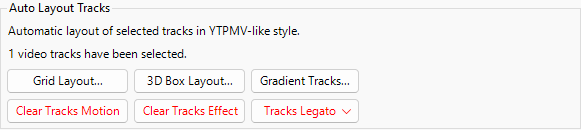
Auto Layout Tracks
Layout controls for visuals.
WARNING
Video tracks must be manually created and selected for usage, this will not create new video tracks.
Grid Layout
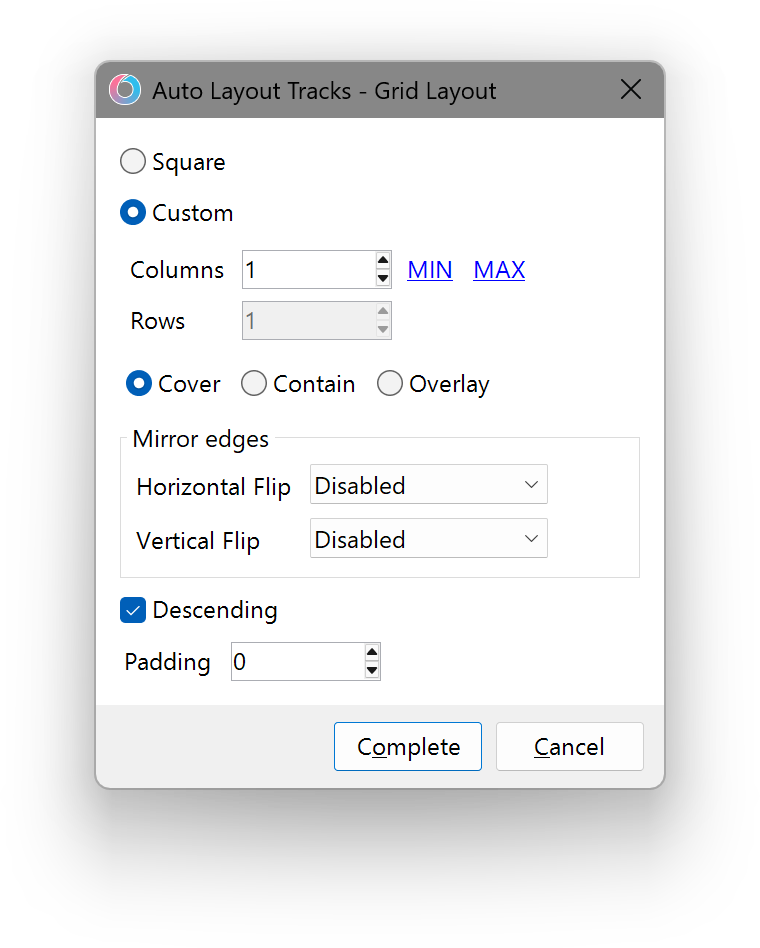
Array
- Square
- Makes the standard layout.
INFO
This makes the Layout 2×2, 3×3, etc.
- Makes the standard layout.
- Custom
- Customize the Layout Format.
Parameters
- Columns
- The value of Columns.
- Rows
- The value of Rows.
INFO
The Rows will adapt to the number of columns and vice versa.
Fit
- Cover
- Adapts the size of the boxes to fit with the layout.
IMPORTANT
This will stretch them if applicable.
- Adapts the size of the boxes to fit with the layout.
- Contain
- Keep the boxes’︀ original size and adapt them to the layout.
- Overlay
- Crops the window of the visuals to the columns and rows specification.
Mirror Edges
Mirrors the Tracks in a Parity Pattern.
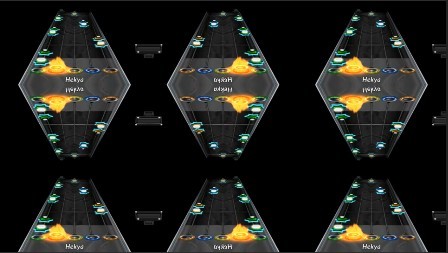
- Horizontal Flip
- Flips the Columns in the pattern chosen.
- Vertical Clip
- Flips the Rows in the pattern chosen.
Descending
Reverses the layout sorting method (when ticked off).
Padding
Adjust the track boxes to be less cluttered with other boxes.
3D Box Layout
This will create a cube with the tracks you select.
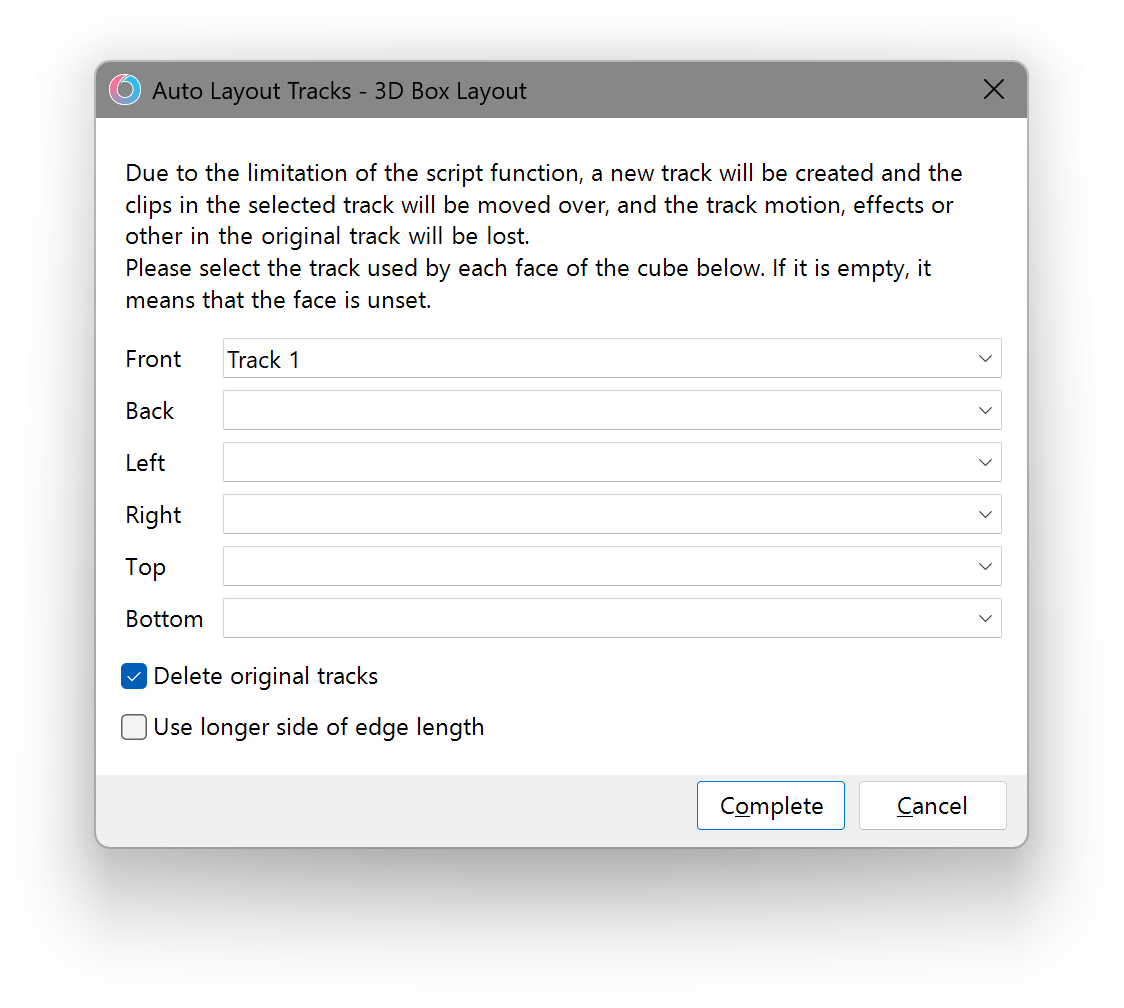
The Layout goes as follows
- Front
- Back
- Left
- Right
- Top
- Bottom
Delete Original Track
Deletes the original track(s) when the layout generates.
Use Longer Side of Edge Length
This may make the cube more natural.
IMPORTANT
This scales with the video project or media file in the track.
Gradient Tracks
This makes the video tracks have a gradient style color effect in your layout.
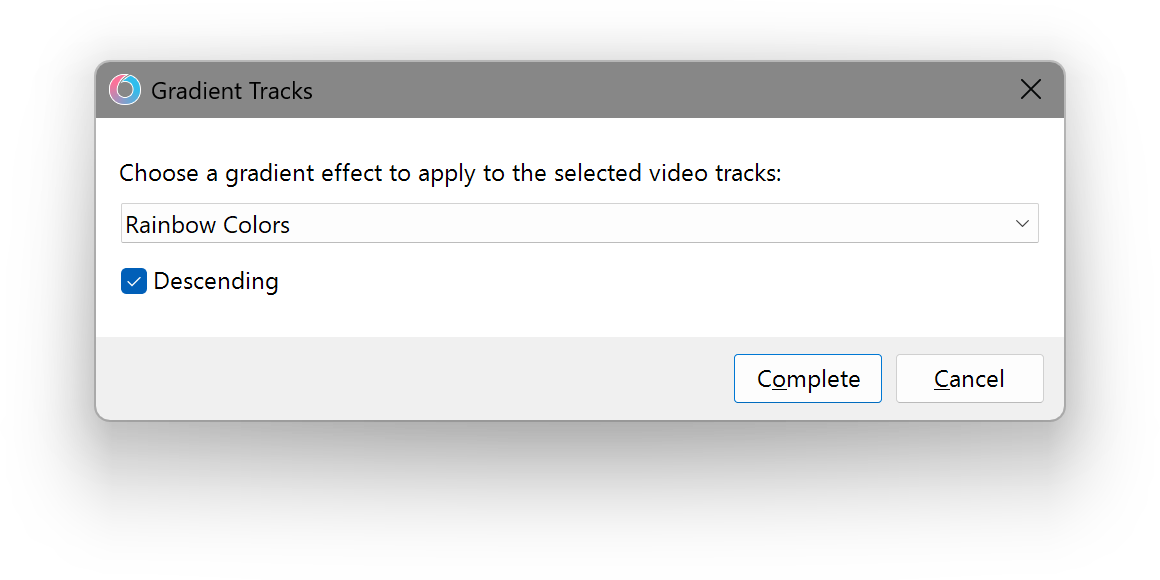
- Gradient Effect
- The Effect Presets.
- Descending
- Reverses the Gradient Order.
Clear Tracks Motion
Resets the Track Motion Box.
Clear Tracks Effect
Removes all the Track Effects.
Track Legato
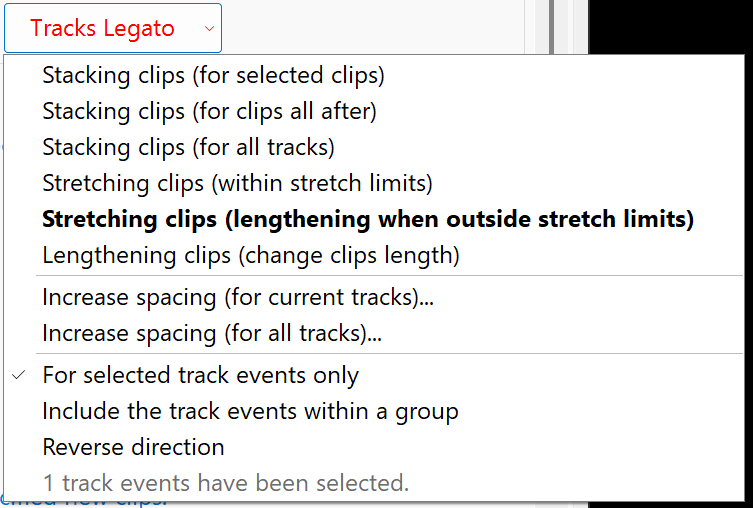
WARNING
This affects all the track events on the select track(s).
- Stacking Clips (for current tracks)
- Stacks all Clips together in the selected tracks.
- Stacking Clips (for all tracks)
- Stacks all Clips together on every track.
- Stretch Clips (within stretch limits)
- Stretch Clips without Extending the clips’︀ length.
- Stretch Clips (lengthen when outside stretch limit)
- Stretch Clips and Lengthens the Clips.
- Lengthen Clips (changes clips length)
- Lengthens the Clips.
- Increase Spacing (current track)
- Divides the Spacing of Each Clip in the Track.
- Increase Spacing (all track)
- Divides the Spacing of Each Clip for all Tracks.
- For Selected Track Events Only
- Allows Track Legato to be applied on selected track events only.
- Include the Track Events within a Group
- Allows Track Legato to be applied on the Grouped Clips.
- Reverse Direction
- Applies the Legato Effect Backwards.
IMPORTANT
Lengthening will extend to the next clip, even to clips that are far apart.
INFO
Make sure there are no clips beyond your final visual.
Quick Select Interval
This can select specific clips in the track that are selected.
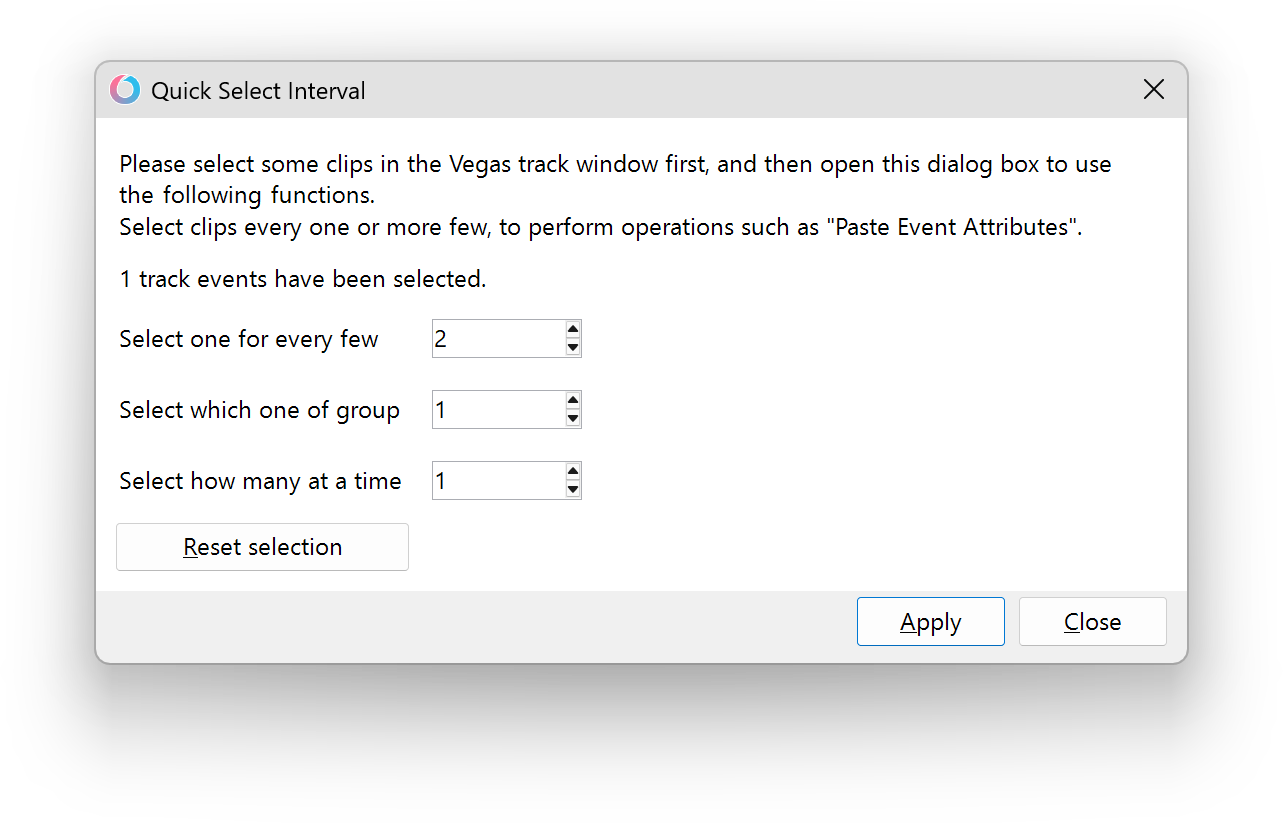
- Select one for every few
- Selects every other clip based on the interval value.
- Select which one of the group
- Selects which order of track clips in the selection.
- Select how many at a time
- Selects how many clips at a time per group.
- Reset Selection
- Resets back to the selection pre-running the script.
Quick Config Properties
Set the properties of the event clips selected.
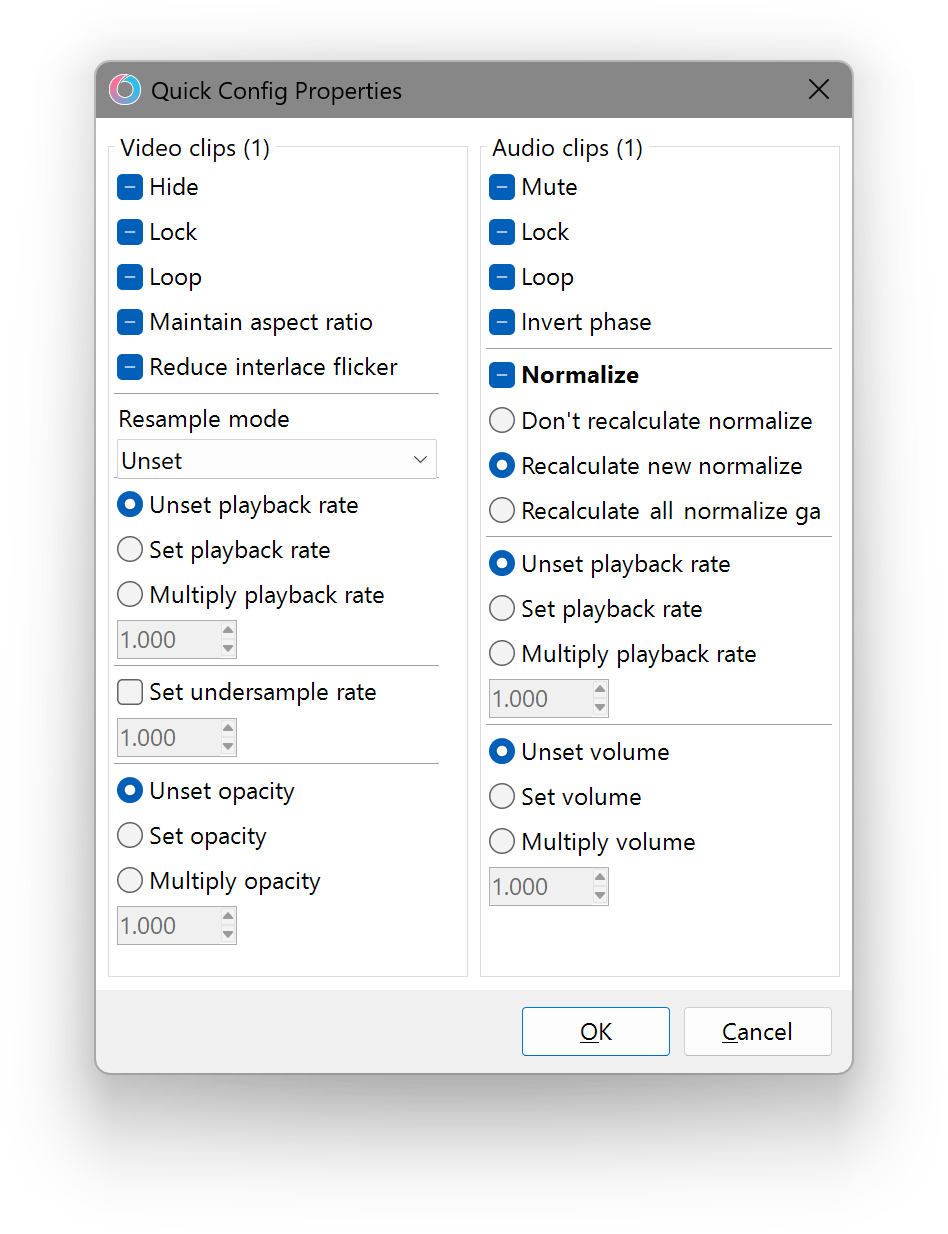
Video clips
- Hide
- Toggles the video.
- Lock
- Toggles video lock.
- Loop
- Toggles video looping.
- Maintain aspect ratio
- Lock the aspect ratio.
- Reduce interlace flicker
- Toggles the interlace flicker.
- Resample Mode
- Sets the resample mode of the video.
- Playback rate settings
- Sets the playback rate of the video.
- Set undersample rate
- Sets the undersample rate of the video.
- Opacity Settings
- Sets the opacity of the video.
Audio clips
- Mute
- Toggles the audio.
- Lock
- Toggles audio lock.
- Loop
- Toggles audio looping.
- Invert phase
- Inverts the audio phase.
- Normalize settings
- Sets the normalize settings of the audio.
- Playback rate settings
- Sets the playback rate of the audio.
- Volume settings
- Sets the volume of the audio.
Replace Track Events
Replaces selected track events with specific preferences.
Specify simultaneously
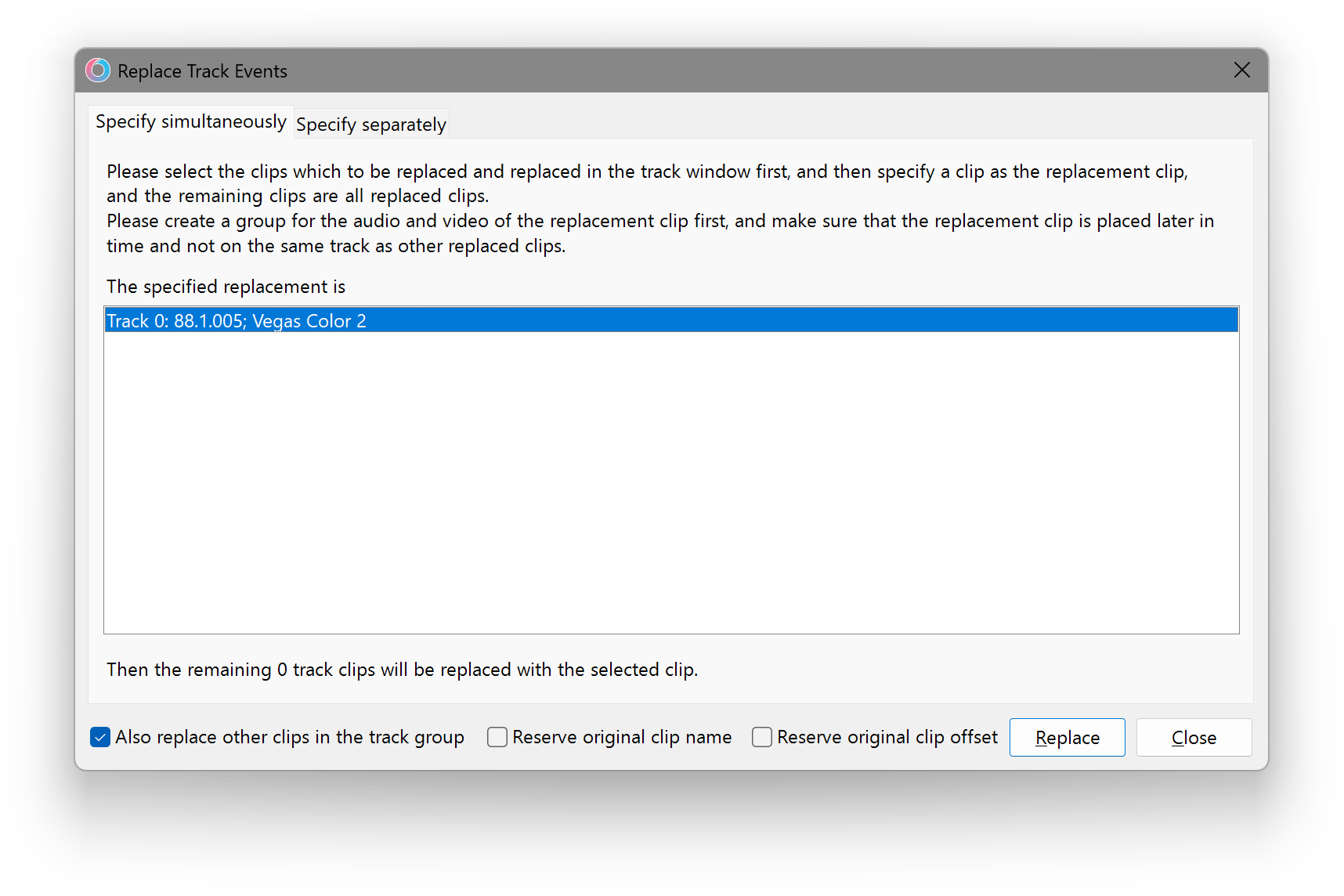
- The Selected Track Events can be replaced with whatever you have selected at the end of the selection, you can choose a clip from another track and use that as the replacement and all the track clips that you have set before it will be replaced with that clip.
IMPORTANT
It’︀s recommended not to put the replacement clip in the same track.
Specify separately
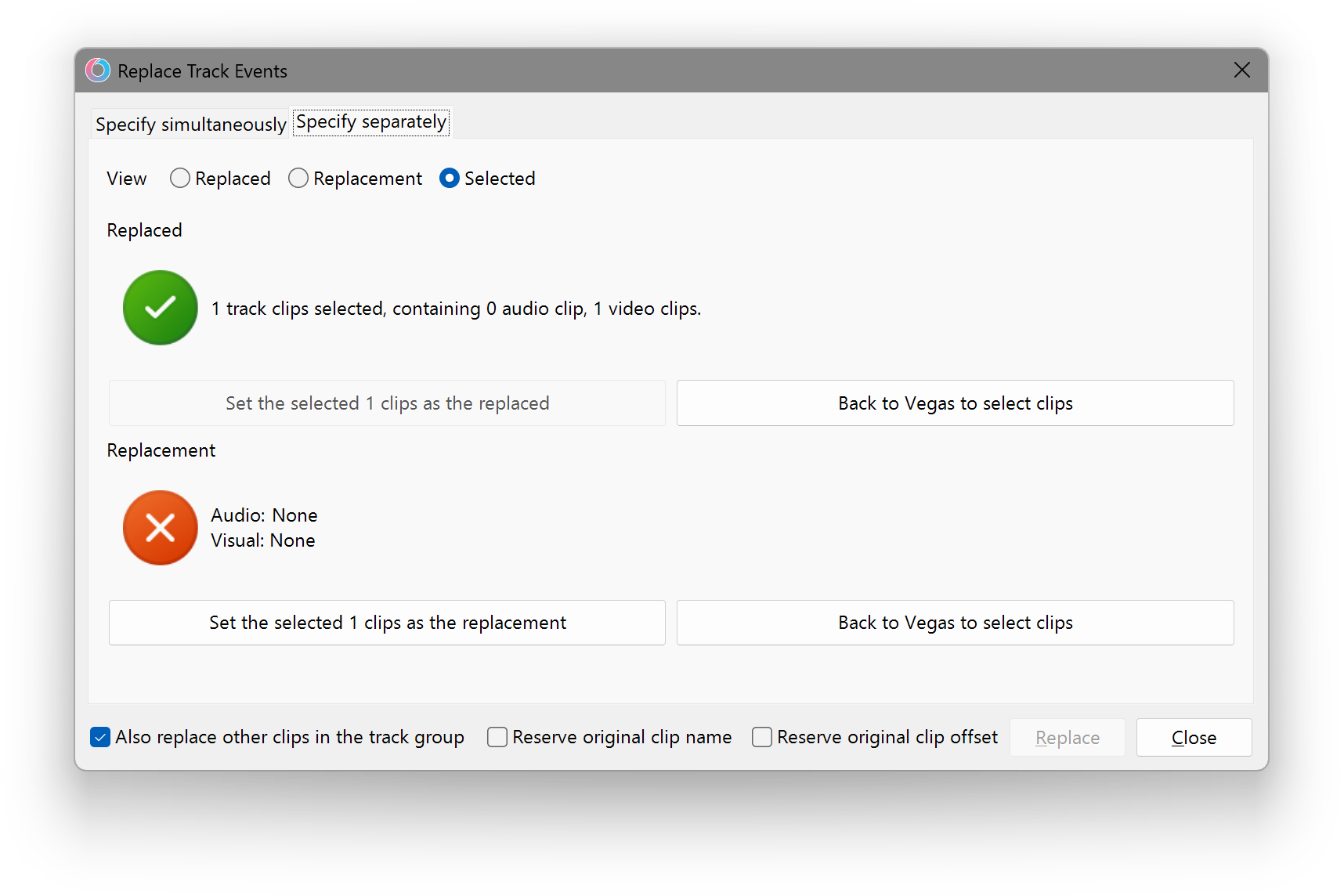
- Replaces specific clips in the track with any clip you select in any order you want.
- Explanation in Extra Info
Options
- Replace other clips in a event group
- Replaces Other Clips from the Same Track Event Group.
IMPORTANT
Doesn’︀t apply if the clip is not in a group.
- Replaces Other Clips from the Same Track Event Group.
- Reserve original clip name
- Reserves the original clip name of the original clips after the replacement.
- Reserve original clip offset
- Reserves the original offset of the clip used in the timeline.
Change Tuning Method
Changes the Tuning Method to the selected track events.
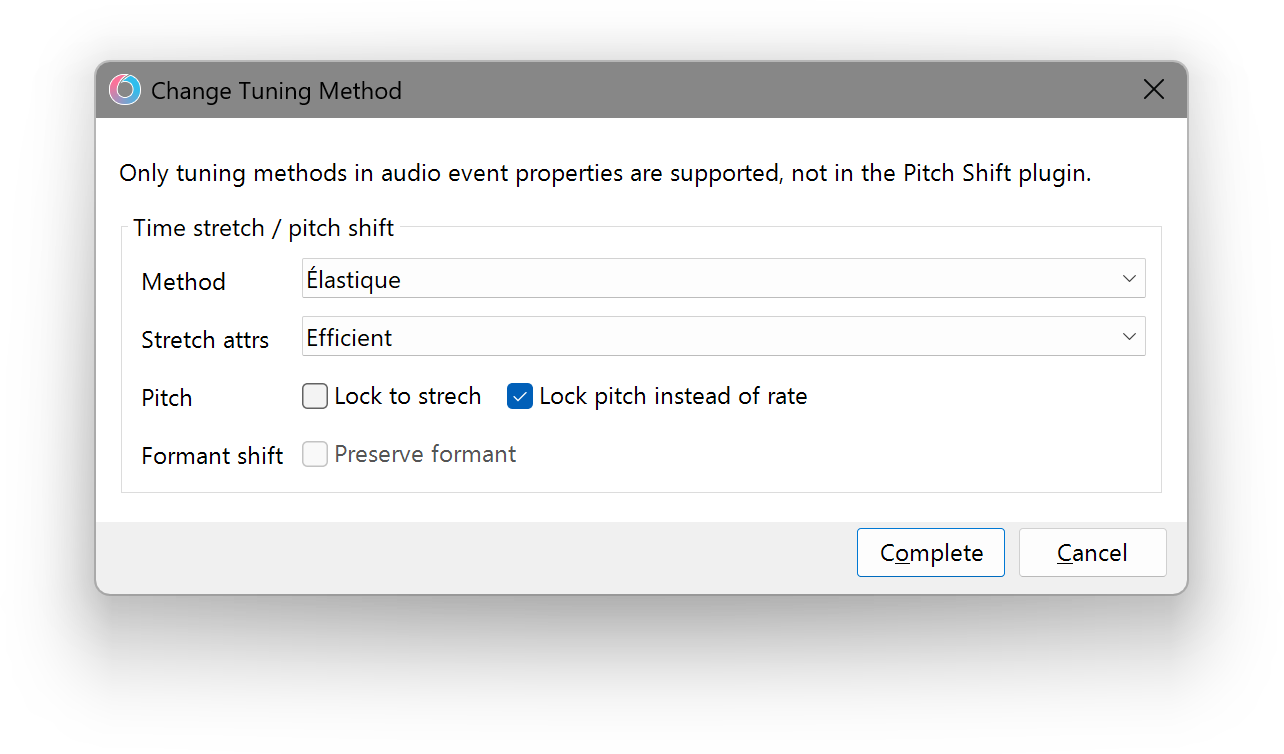
Refer to ”︀Audio”︀ on details about the Audio Tuning Methods
Pitch Semitones
- Pitch Lock
- Locks the Pitch Value.
- Lock Pitch instead of rate
- Locks the Pitch instead of the Stretch Rate.
Formant Shift
- Reserve Formant
- Locks Formant.
Batch Subtitle Generation
Creates batches of text using the Title Media Generator with any duration.
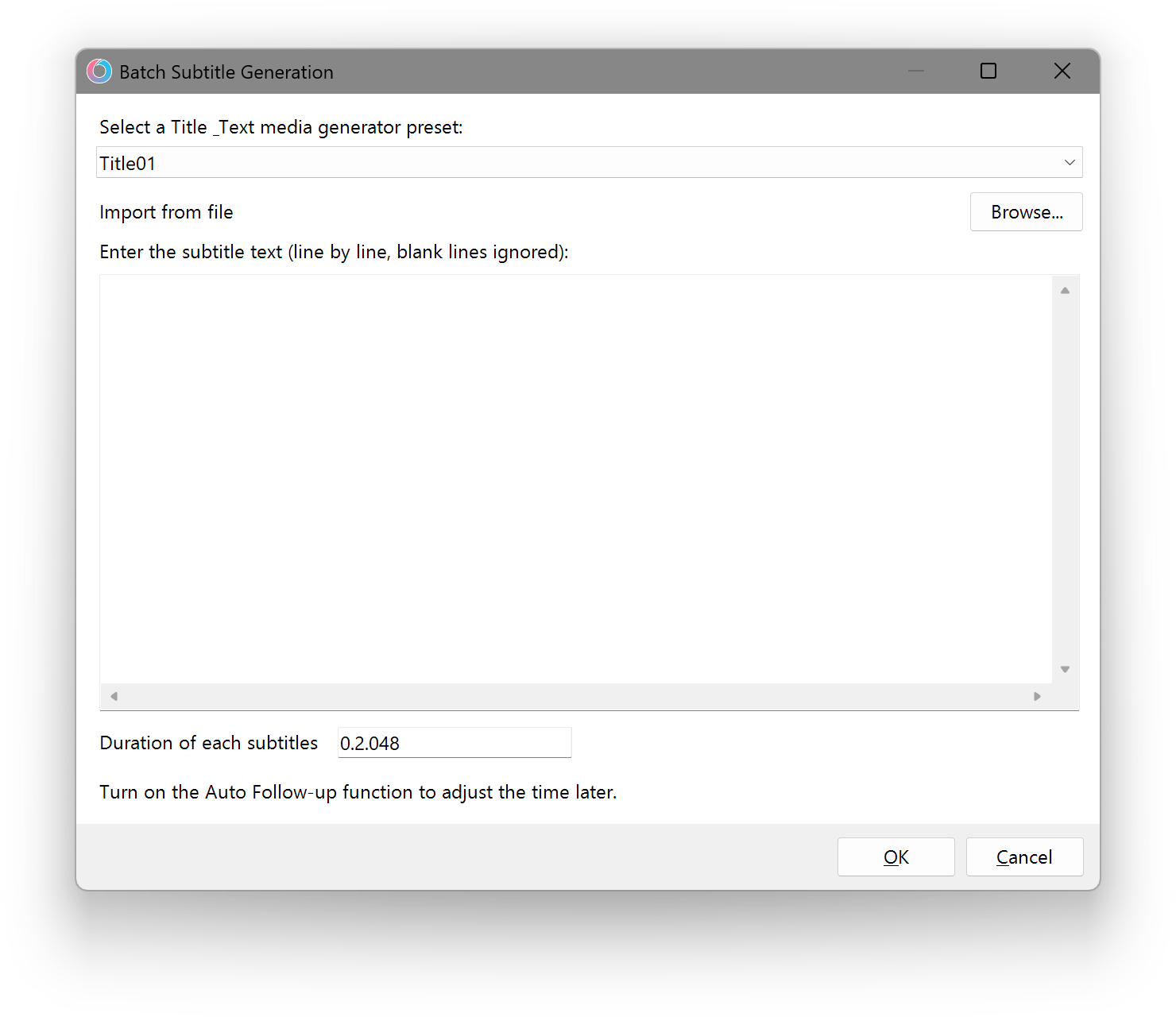
- Import from File
- Import a text file to be used for subtitles.
- Preset
- Controls the Preset Selection.
- Input
- Input text, line by line.
IMPORTANT
Blank lines are ignored.
- Input text, line by line.
- Duration
- Duration of each line.
Find Track Events
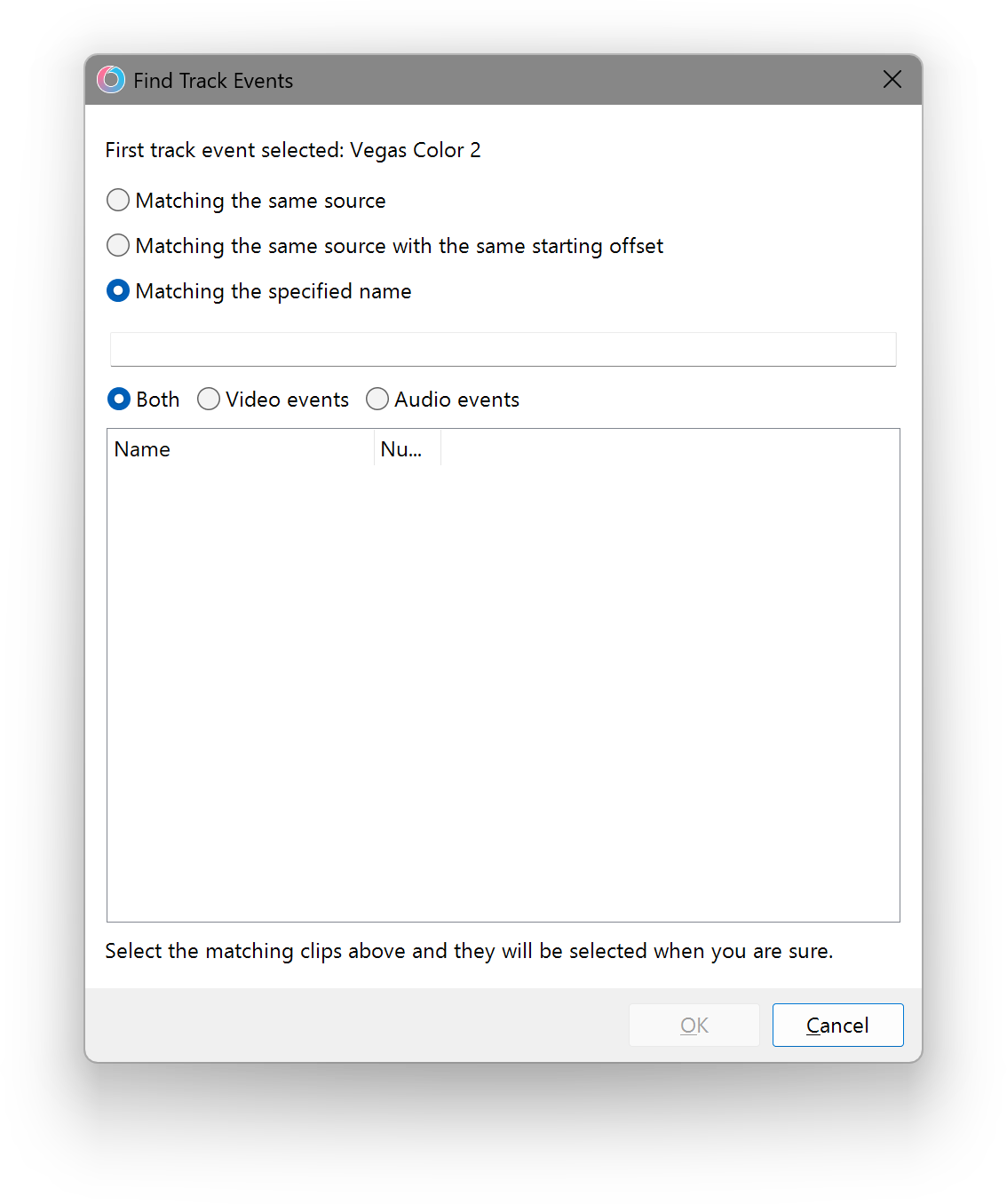
Find and Select all the track events that match the specified.
INFO
This is helpful for selecting clips for layout replacement, making template layouts easier.
Options
- Matching Same Source
- Matching Same Source with Same Starting Offset
- Matching Specified Name
Search Text Box
Search for any video, audio or both track events in your project.
- Both
- Searches for both video and audio events.
- Video events
- Searches for only video events.
- Audio events
- Searches for only audio events.
Apply Visual Effect
Apply Visual Effects to selected Track Events.
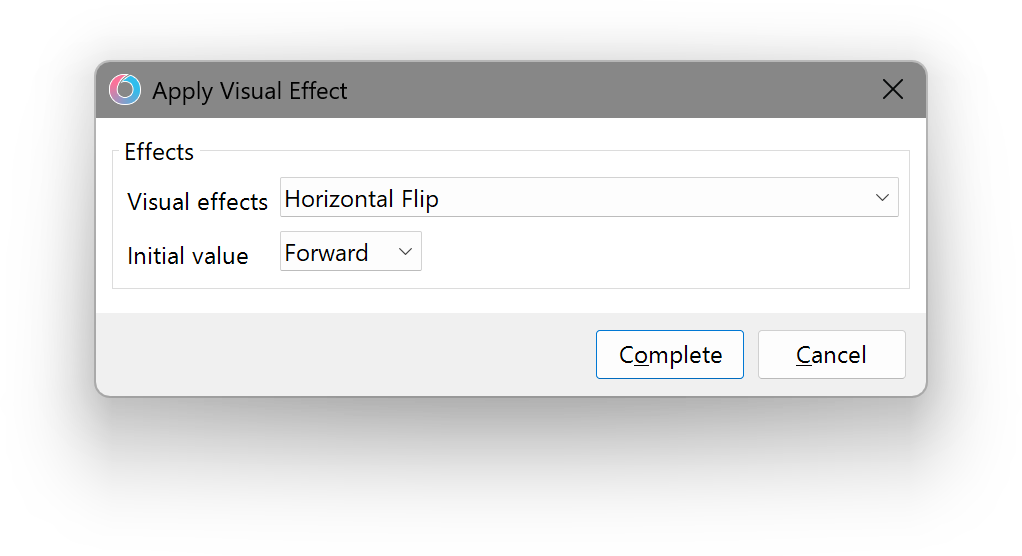
Refer to ”︀Visual”︀ for details on the Visual effects you can use.
Convert Music Beats
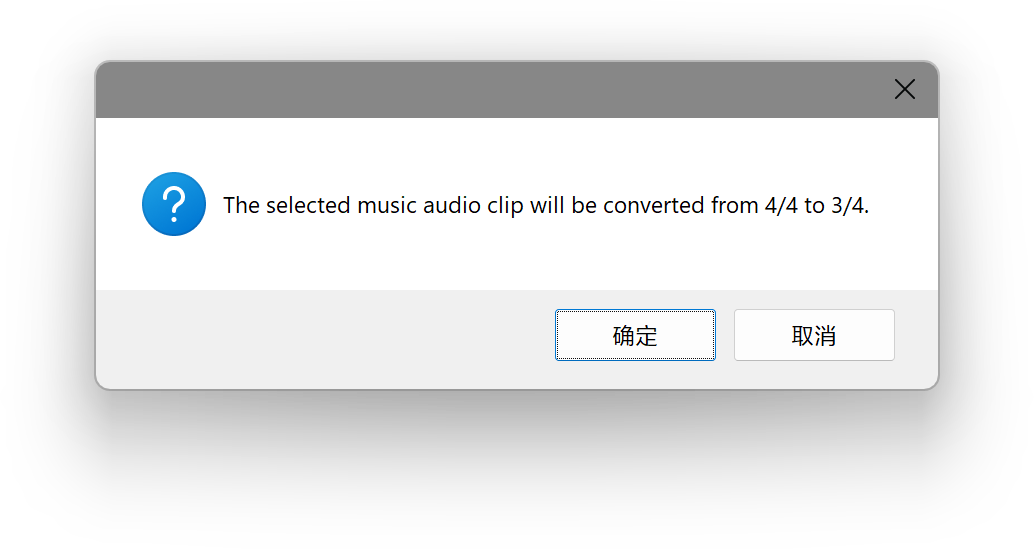
Converts Music Beats to a Different Time Signature.
INFO
Useful for changing specific beats to a different time signature.
Custom Fade Gain
Adjusts Gain/Volume Range for Selected Track Events.
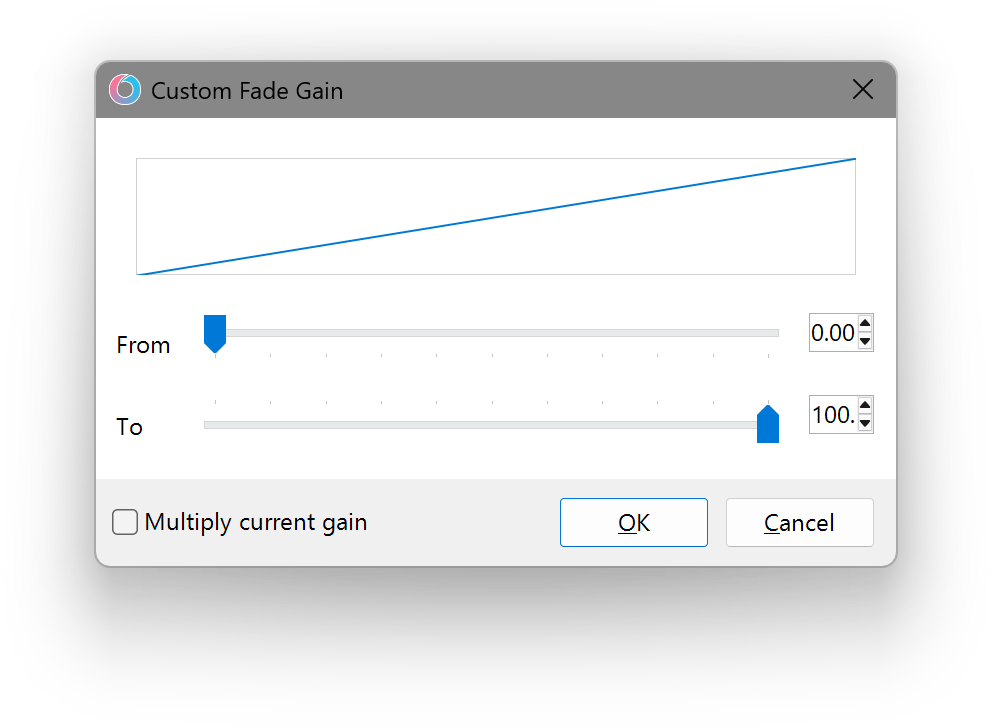
- From Value
- The Value of the Starting Fade Effect.
- To Value
- The Value of the Ending Fade Effect.
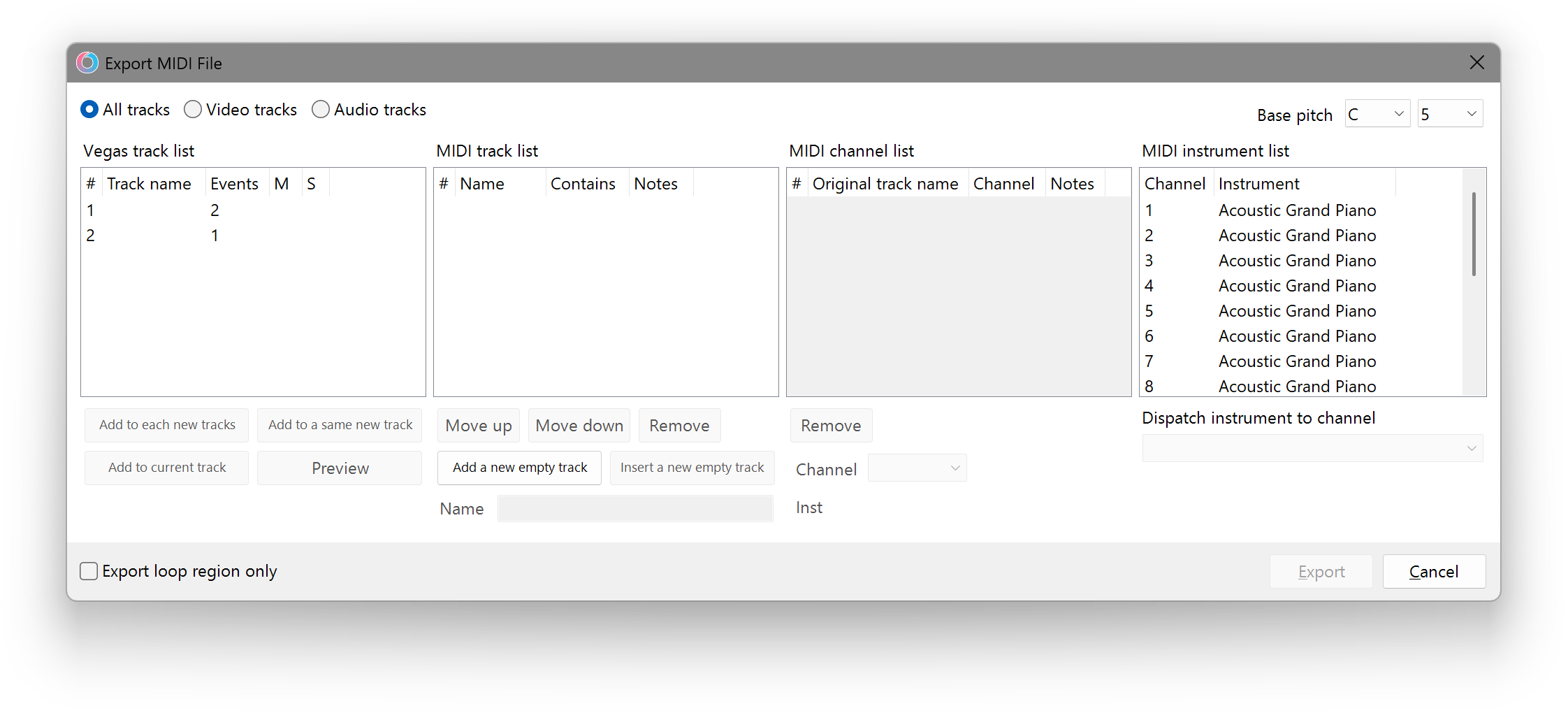
Export MIDI File
Exports Tracks or Track Events to a Score Sequence File.
INFO
Naming your tracks beforehand will make the creation process smoother and help identify your tracks for future use.
IMPORTANT
The MIDI being created can support the following:
- ☑️ Use audio tracks and events.
- ☑️ Can generate multiple tracks.
- ☑️ Allows selecting instruments.
- ☑️ Allows set track name.
- ☑️ Allows setting base pitch.
- ☑️ Can export loop region only.
- ☑️ Adjust events gain (Audio: Volume; Video: Opacity.) [1]
- ☑️ Adjust tracks volume for audio tracks or opacity/composite level for video tracks. [1:1]
- ☑️ Adjust audio tracks pan. [1:2]
- ❎ Use video tracks and events.
- ❎ Using the “︀Pitch Shift”︀ Audio FX instead of tuning with + and - key.
- ❎ Using a version of Vegas Pro < 16.
☑️ - Good to go.
❎ - Not recommended - This will generate notes with all base pitch.
Settings
- All Tracks
- Selects all tracks.
- Video Tracks
- Selects only video tracks.
- Audio Tracks
- Selects only audio tracks.
- Base Pitch
- Sets the default base pitch (C5).
- Export loop region only
- Exports the MIDI with only the selected loop region track events.
Vegas Track List
Select the tracks to be added to the MIDI File.
IMPORTANT
Track names can and will get automatically added to the track list and channel list.
Options
- Add to each new tracks
- Adds the selected track(s) to new MIDI tracks with MIDI channels.
- Add to a same new track
- Adds the selected track(s) to 1 new MIDI track with MIDI channels.
- Add to current track
- Adds the selected track(s) to the selected MIDI track with new MIDI channels.
- Preview
- Previews the track(s) selected.
MIDI Track List
Manage the track list for the MIDI being prepared. Displays how many created tracks in the preparation list and how many Vegas tracks and notes in each MIDI Track.
IMPORTANT
This is what Otomad Helper will be looking for. Adding any tracks to the channel list will add notes instead in the export.
Options
- Move up
- Moves the selected track up.
- Move down
- Moves the selected track down.
- Remove
- Removes the selected track from the list.
- Add a new empty track
- Creates a new MIDI track.
- Insert a new empty track
- Insert a new MIDI track on top of selected.
- Name
- Input a name for the track.
MIDI Channel List
Manage the channel list from the select track in the track list. Displays how many Vegas tracks and notes created in the selected MIDI track.
Options
- Remove
- Removes the selected channel from the list.
- Channel
- Set the channel the selected track is on.
DANGER
Use the same channel at your own risk.
- Instrument
- Displays used MIDI instrument for the channel.
MIDI Instrument list
List of instruments selected to their according MIDI channel that can be changed.
Options
- Dispatch Instrument to Channel
- Changes and sets instrument to the selected MIDI channel.